SHOPPING LISTS · IPHONE
Import a shopping list from a photo
Keep the list. Skip the retyping. Share a clear photo of your handwritten or printed shopping list, then check what Shoplan reads.
Before you start
Open Shoplan and sign in. You’ll also need an internet connection to send the photo and read the results.
Take a clear photo of one shopping list, or use a photo already saved in Photos. Include the whole list, keep the writing in focus, and avoid shadows or glare. A simple list such as milk, eggs, bananas, rice, and tomatoes is a good place to start.
1. Share your photo
Open the list’s photo in Photos. Tap Share (the square with an upward arrow), then choose Shoplan in the row of apps. If it isn’t visible, scroll along that row and look under More.
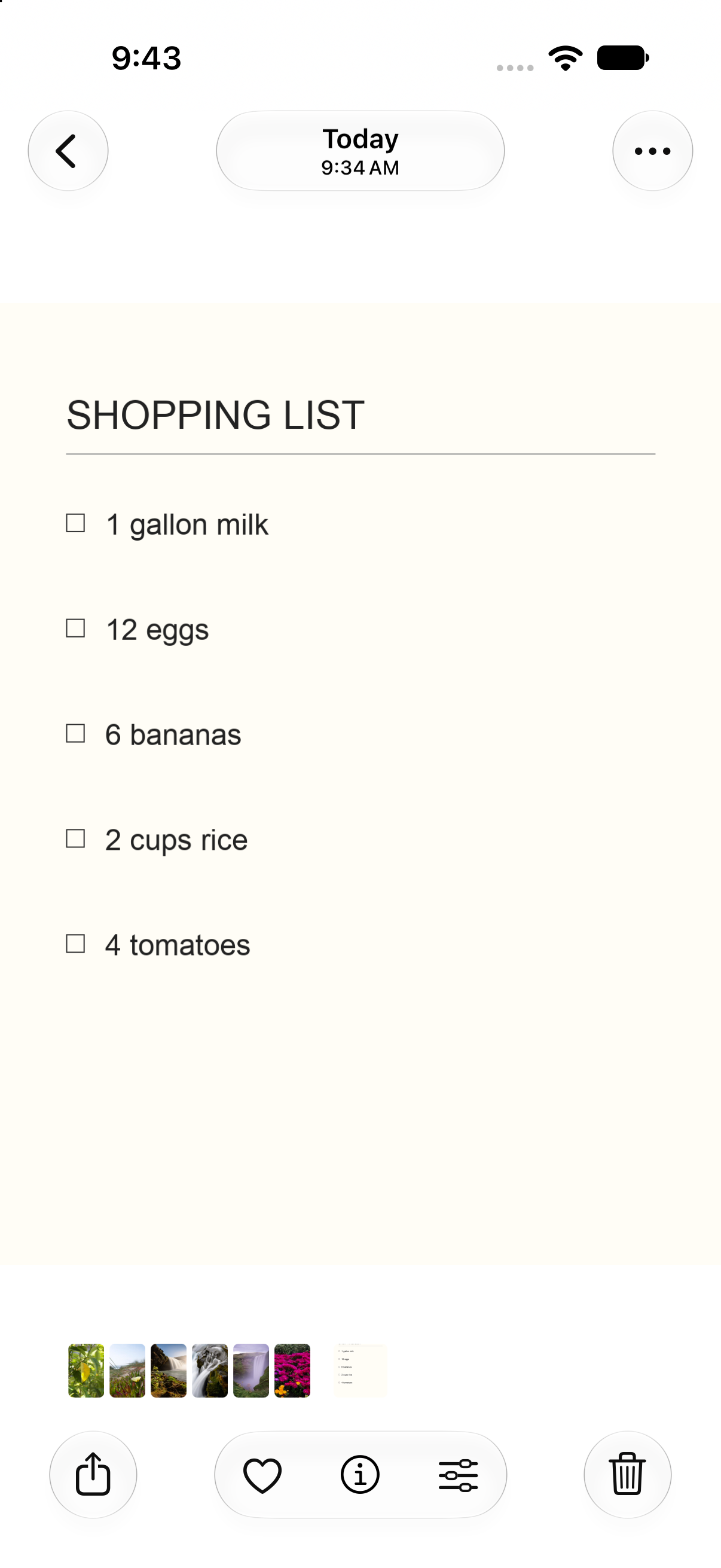
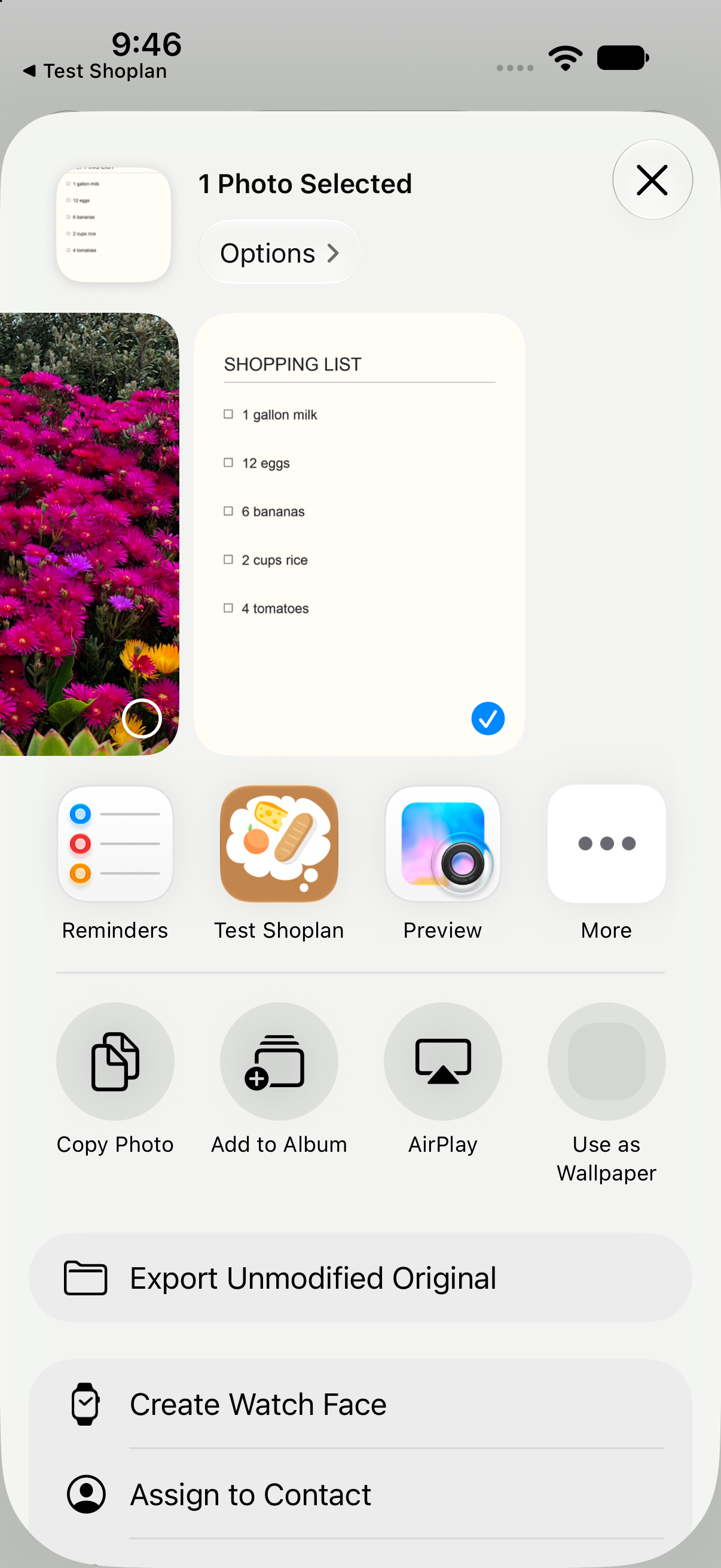
Shoplan starts uploading when you share the image. There is no separate shopping-list import button to tap in the app.
2. Open your import
Wait for Photo sent to Shoplan. This means the photo has been sent; Shoplan is still reading it in the background.
Tap Open Shoplan, or tap Done to return to Photos and open Shoplan yourself. On Home, look for Photo ready to review, then tap Review. The card appears once the photo is ready; it may not appear immediately.
3. Review and correct
On Review shopping list, compare the recognized items with your original photo. Tap the list card’s chevron if the rows are collapsed.
Each row has editable Qty, Unit, and Ingredient fields. Tap a field to correct the amount, unit, or item name before saving. Use a decimal for a fractional quantity, such as 0.5 for half.
Check every row, especially any orange warning or Source said… note. A warning means Shoplan was uncertain about the reading. An item without a warning can still need a correction.
4. Add to your list
When the entries look right, tap Add [number] items to your list. The number reflects the entries in that card. The button changes to Added to your list after saving. Save all saves all unsaved cards, so review them first if you use it.
Tap Close, then open your shopping list to check the saved groceries. These entries are added to your existing list.
If you get stuck
Shoplan asks you to sign in
Open Shoplan, sign in, and share the photo again from Photos.
You see “Photo Import Failed”
Check your connection and try sharing the photo again. If the photo is hard to read, take a clearer one with the full list visible.
The review card hasn’t appeared
Give the import time to finish, then return to Shoplan. If it still doesn’t appear, contact support. Sharing the same photo repeatedly may create more than one import.
The items are wrong or incomplete
Correct the visible quantities, units, and names before saving. This review screen does not have controls to add or delete rows. If the result is too incomplete to use, tap Close and try a clearer photo. You can discard the unwanted import with the trash button on its Home card; confirm Discard only for the import you want to remove.
An item couldn’t be saved
Keep the review open, check your connection, and try the add button again. Check your shopping list afterward to confirm the result.
Still stuck? Contact Shoplan support.