SHOPPING TRIPS · IPHONE
Shop online with a shopping trip
Turn your list into an online cart. Pick a store, sign in once, and Shoplan walks you through your list one item at a time.
Before you start
Open Shoplan, sign in, and add a few items to your shopping list. A shopping trip uses the items already on your list, so a short list such as milk, eggs, bananas, and bread is a good first try.
Online shopping works with these stores: Walmart, BJ’s, Hannaford, Target, Costco, Kroger, Aldi, Sam’s Club, and Whole Foods. For Walmart, BJ’s, and Hannaford, you’ll also need an account with that store, because Shoplan adds items straight to your cart there.
Shoplan never places your order. You check out with the store yourself, so you always review prices, substitutions, payment, and pickup or delivery before anything is ordered.
1. Start a shopping trip
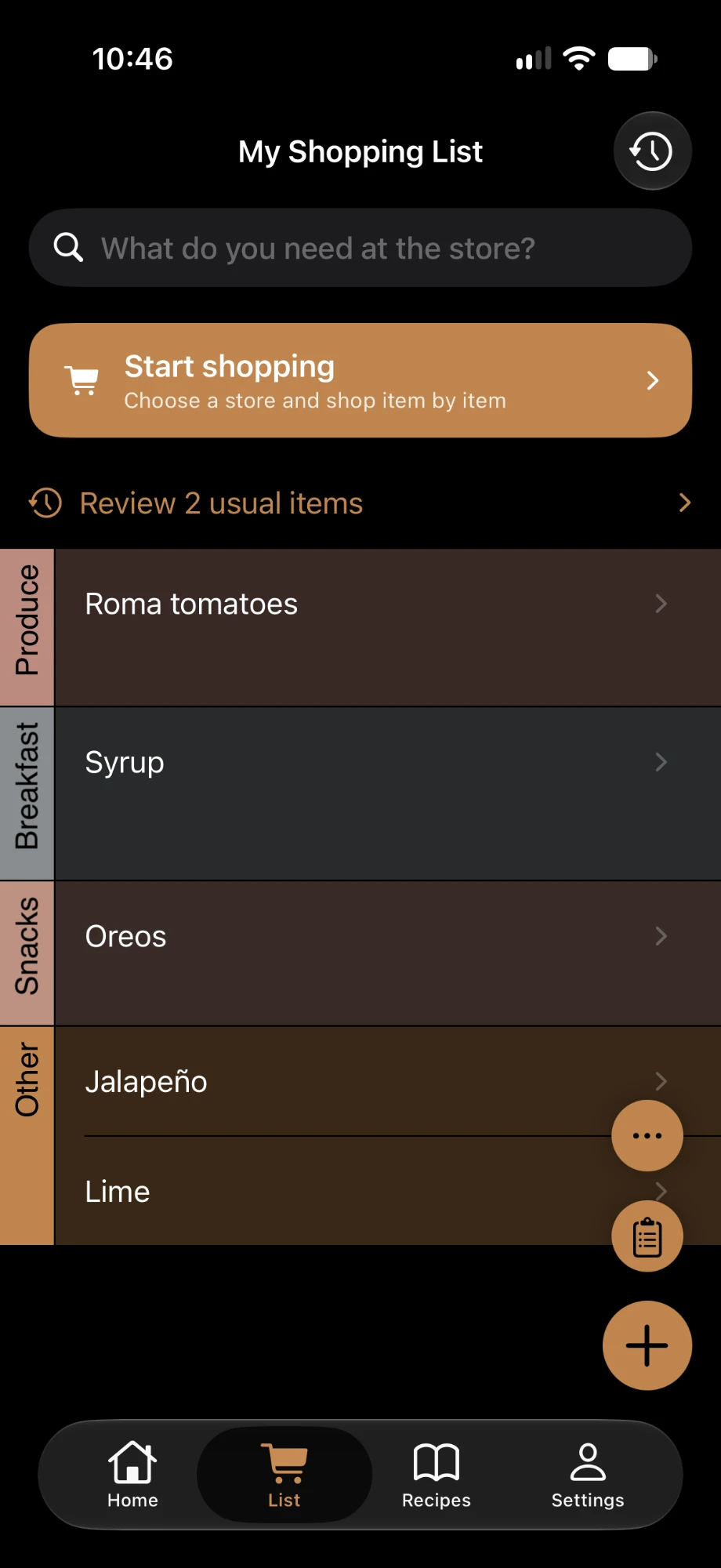
Open the List tab. At the top of your list, tap Start shopping (“Choose a store and shop item by item”).
If you don’t see it, check that your list has items. The button is also hidden while someone in your family already has a trip in progress; their trip appears as a banner at the top of the list instead.
2. Choose your store
On Where are you shopping?, tap your store. Stores you’ve used before appear under Your stores with the number of items you’ve marked for them. To use a store that isn’t listed, type its name under Local or custom store and tap Use.
3. Choose Online and start
On Start a shopping trip to [store]?, tap the Online tile, then tap Start Trip.
If you only see the start button and no In Store or Online tiles, that store doesn’t support online shopping in Shoplan yet. Pick one of the stores listed above instead.
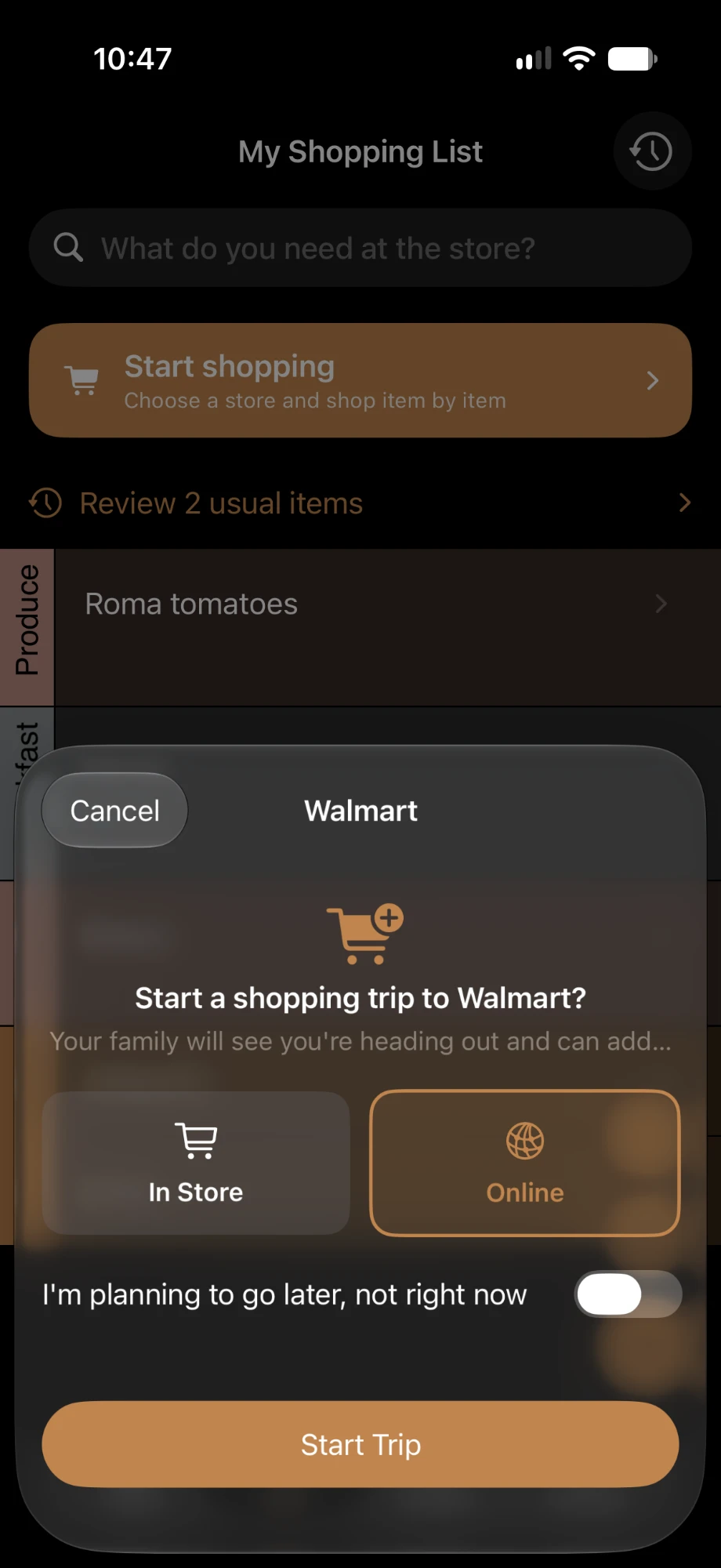
If your family uses Shoplan together, they’ll see you’re shopping and can add anything they need before you finish.
4. Sign in to your store
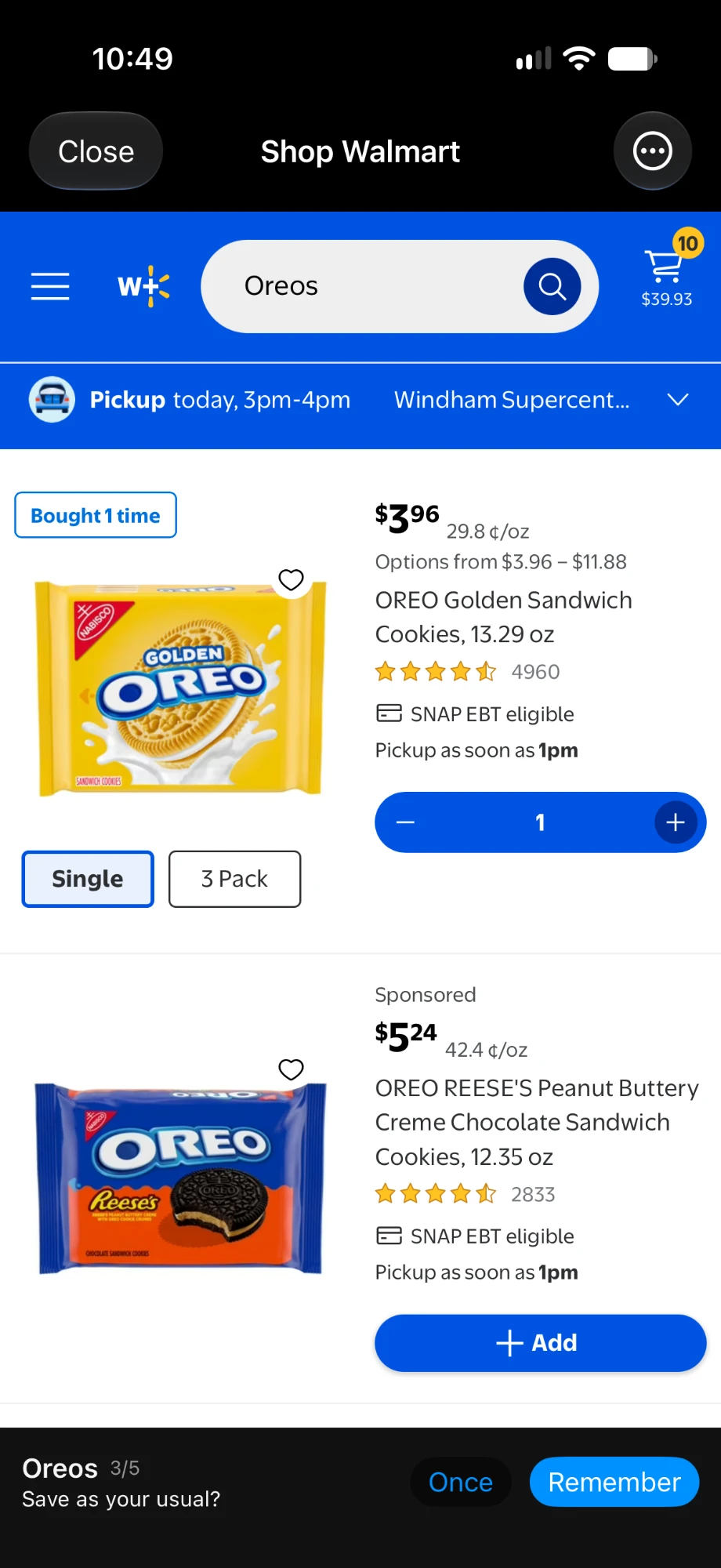
For Walmart, BJ’s, and Hannaford, Shoplan opens the store’s own website inside the app, titled Shop [store].
If you aren’t signed in, you’ll see Sign in to [store]. Tap Sign In and log in on the store’s page as you normally would. When you’re finished, tap Done in the bar at the bottom, and Shoplan will start your list. You usually only need to do this the first time.
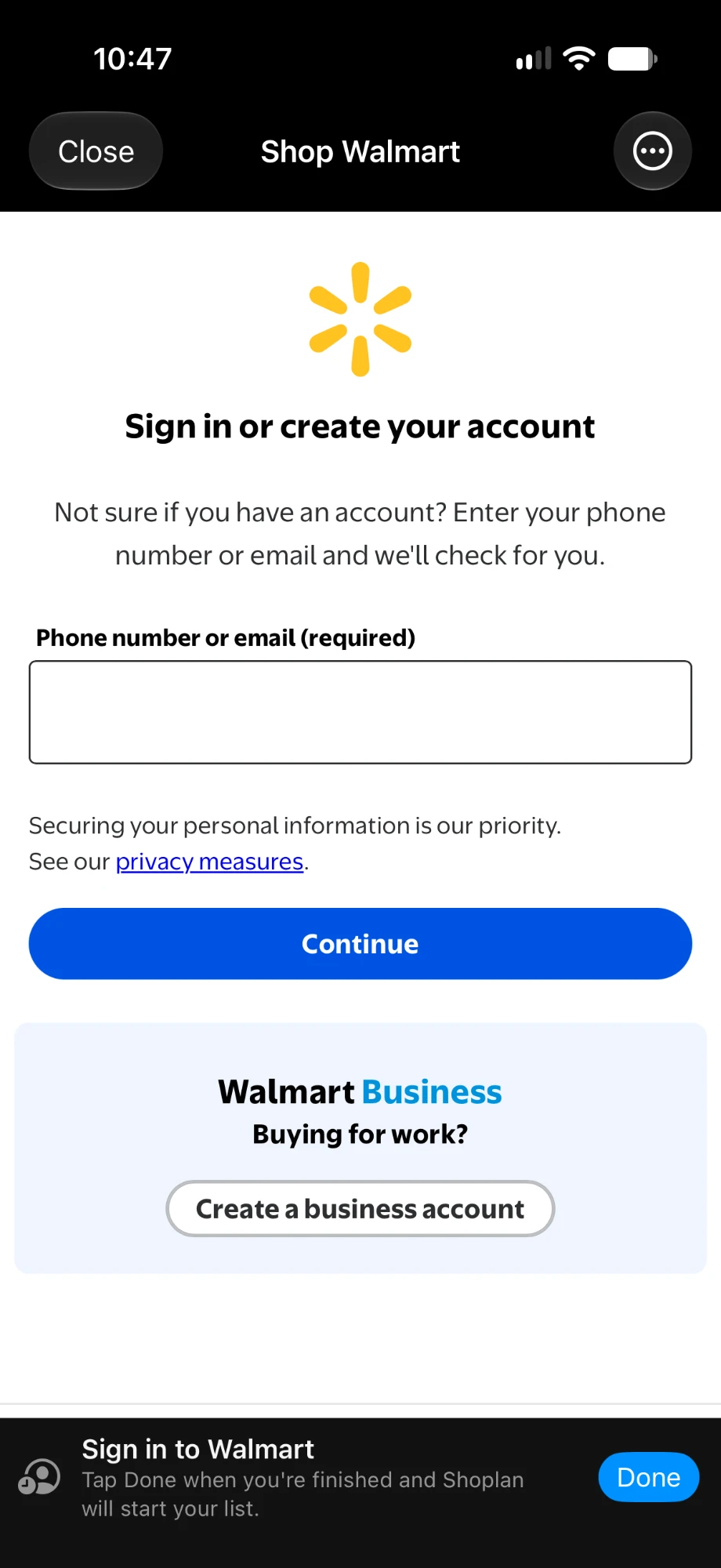
For Walmart, you’ll also see Choose your Walmart store. Use Pickup or delivery at the top of the Walmart page to pick your store, then tap Done. Shoplan can only add items your store carries.
5. Go item by item
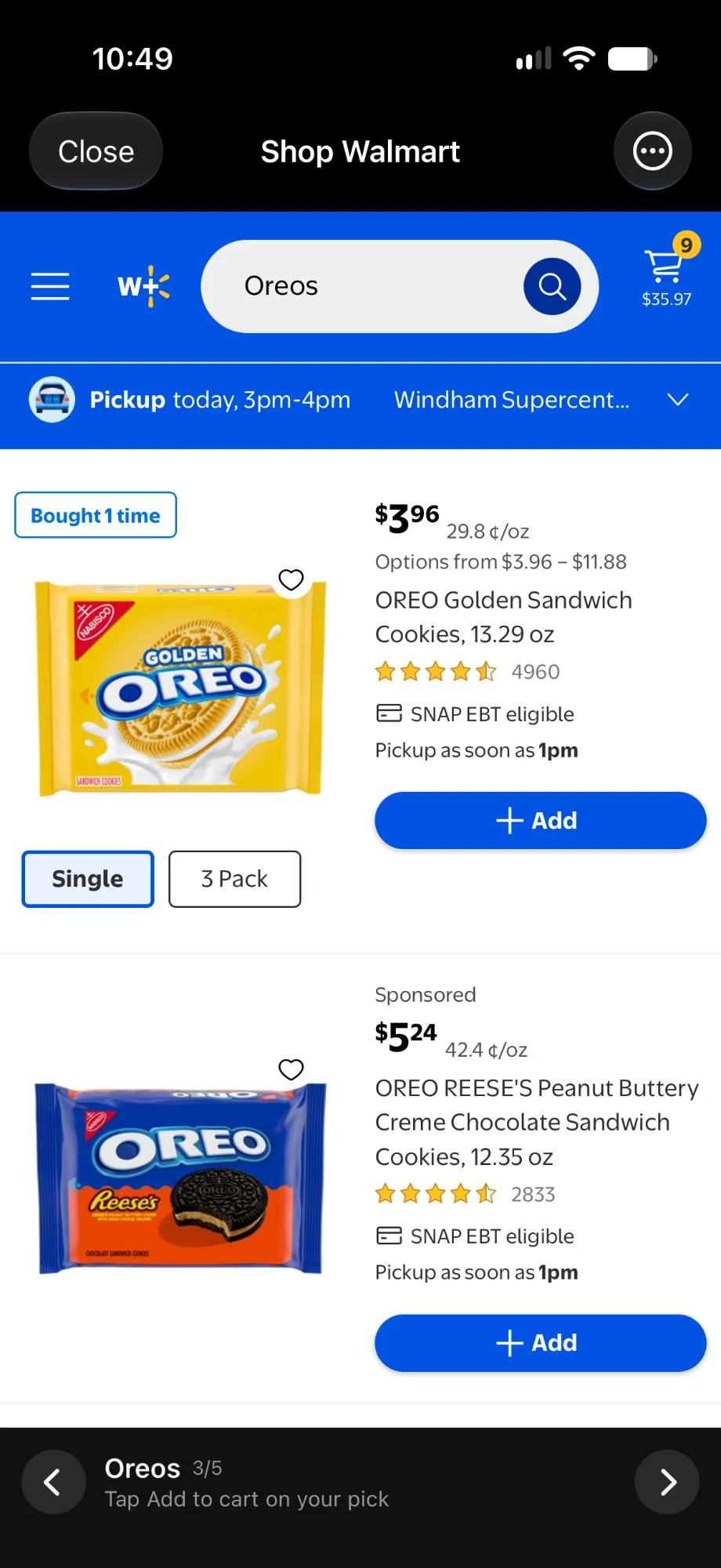
Shoplan searches the store for one list item at a time. The bar at the bottom shows the item’s name and your place in the list, such as 3/12.
Walmart, BJ’s, and Hannaford
- Look through the results and tap the store’s own add button on the product you want (on Walmart, it’s + Add). The bar changes to Added to cart.
- Shoplan asks Save as your usual? Tap Remember to pick this product automatically next time, or Once to choose again later.
- Tap the right arrow to move to the next item. If you don’t want an item, tap the right arrow without adding anything to skip it. Tap the left arrow to go back.
On later trips, items you remembered show Your usual, and Shoplan may offer to add them for you. Tap Add [number] for me, or One by one to choose each item yourself.
Target, Costco, Kroger, Aldi, Sam’s Club, and Whole Foods
Shoplan opens the store’s search results for each item. Add the product on the store’s website, then tap Added & Next. Tap Skip to move on without adding, or the left arrow to go back.
6. Review your cart and finish
After the last item, the bar shows how many items are in your cart. Tap Review cart to open your cart, then tap Finish. You can also finish early: tap Finish, or the ••• menu and then Finish trip.
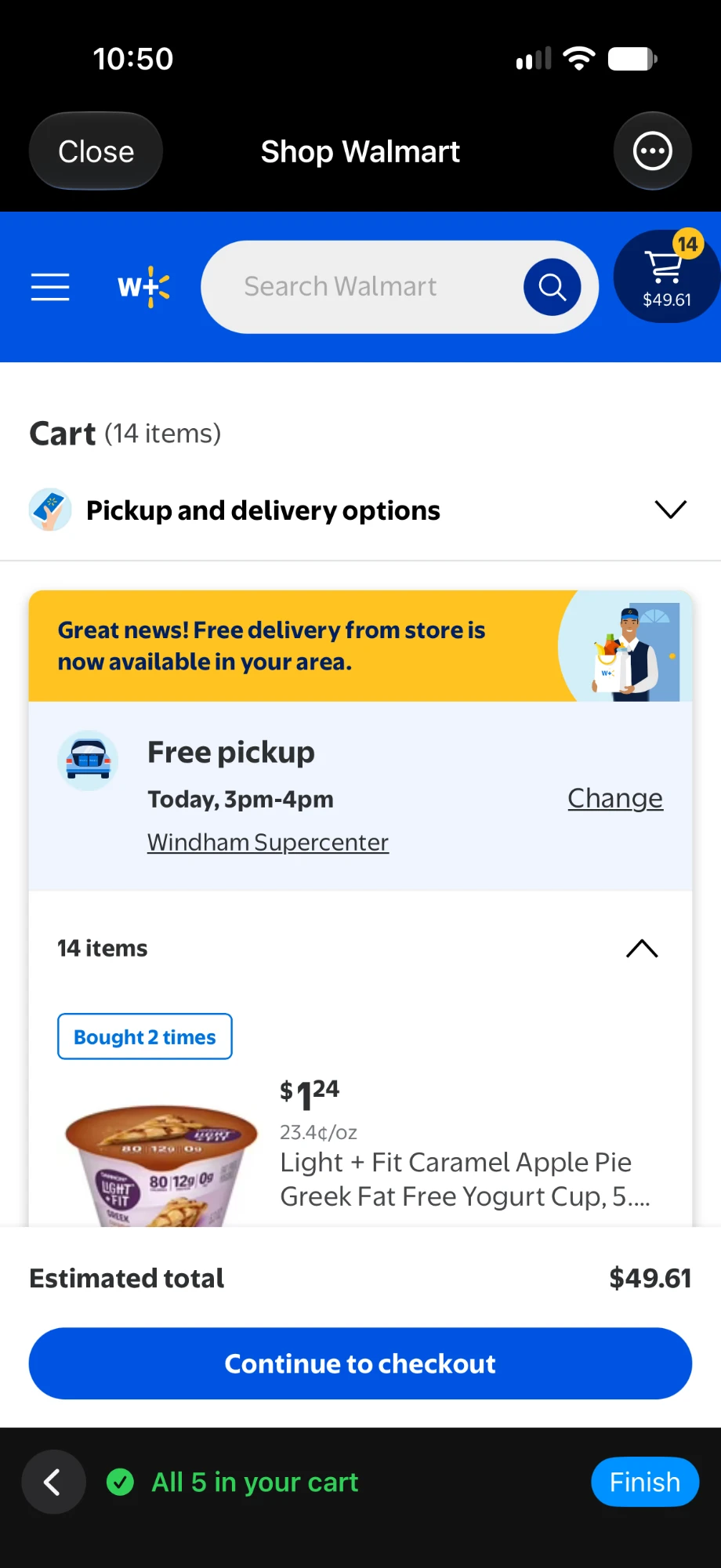
On Ready to checkout, choose where to check out, either right there in Shoplan or in the store’s own app or website. Complete your order with the store.
Then tell Shoplan what to do with your list:
- I checked out — remove purchased items removes what you added to your cart.
- Not checking out yet — keep my list keeps everything on your list.
Only remove items after you’ve actually placed the order, so nothing gets lost.
If you get stuck
“Start shopping” isn’t showing
Add at least one item to your list. If a banner shows a family member’s trip in progress, wait for it to finish first.
There’s no Online option
That store isn’t supported for online shopping yet. Choose one of the stores listed in Before you start, or shop in store.
You see “Couldn’t confirm your sign-in”
Tap Retry. If it still can’t confirm, tap Sign In and log in again on the store’s page, then tap Done.
An item says “Not at your store”
Your selected store doesn’t carry that product. Search for a different product on the store’s page, or for Walmart, tap ••• and then Change location.
The store page looks stuck or blank
Tap ••• and then Refresh page. To begin the list again from the first item, choose Start over.
You closed the app partway through
Open the List tab. When Shoplan asks Resume shopping?, tap Resume to pick up where you left off.
You see “Continue with Shoplan Pro”
You’ve reached the online shopping trip limit for your plan. Tap Upgrade to keep shopping online, or Not now to shop in store instead.
You see “Unable to finish”
Check your connection and tap Finish again. Your shopping list itself isn’t affected.
Still stuck? Contact Shoplan support.